Connect to a Boomi API Gateway with an Agent
To manage Boomi API Gateways across multiple Boomi accounts using a single API Control Plane tenant, follow these steps. This process sets up an agent to connect your Boomi API gateway to Boomi's API Control Plane using a Docker image.
See How to Connect to Boomi API Gateways if you don't need to manage Boomi API Gateways from a different account.
Prerequisites
To proceed, you will need the following:
-
A running instance of Boomi's API Control Plane.
-
An account on the Boomi platform with at least one API gateway.
-
Docker to utilize the image of our agent, which acts as an intermediary.
Any other container environment is also possible. Helm Charts are available here: GitHub - CPagent-Helm: This is the Helm Chart installation resource for the Control Plane agent .
Create a new Environment
To get started, open your API Control Plane instance and follow the instructions below.
-
Navigate to Environments in the menu on the left side.
-
Select the Register Gateway button.
-
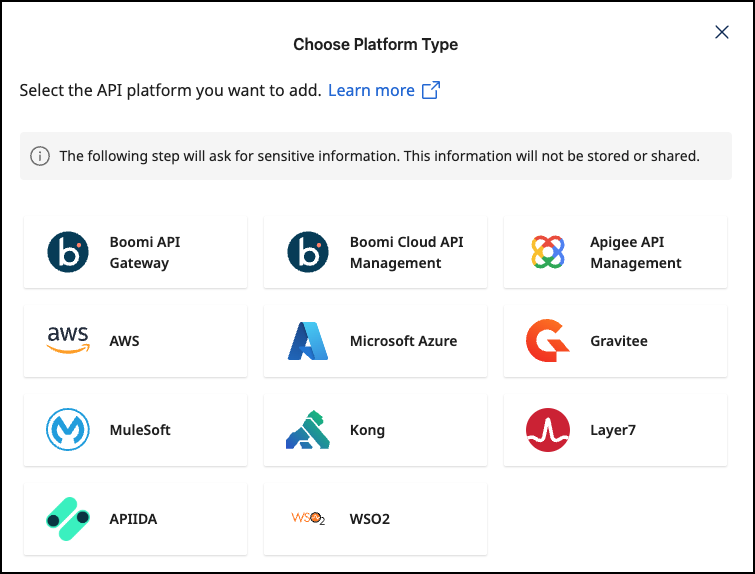
Select Boomi API Gateway.
Add Gateway Information
-
Add the following details:
- Gateway Name - The display name for your gateway.
- Account ID - Your Boomi account ID. This is located in the Boomi Platform in Settings > Account Information.
- User - The email address you use to log into the Boomi Platform.
- API Token - You can create an API Token in the Boomi Platform in Settings > Platform API Tokens.
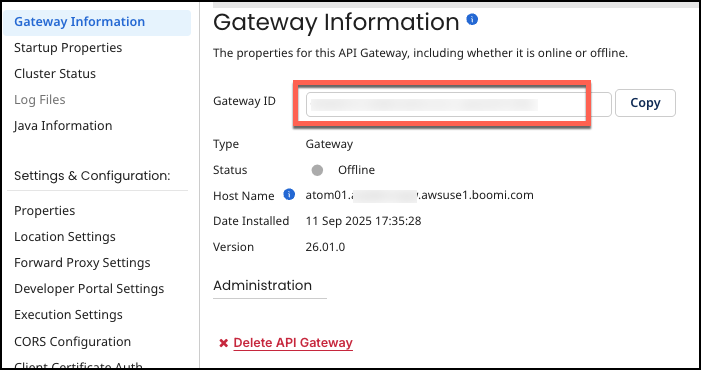
- Gateway ID - The ID of the Gateway to connect to. The ID is located in the Boomi Platform in API Management > Configure Server - Gateways and select the name of the Gateway.
-
Select Connect to Gateway.
-
Select Download and Next. Your configuration file will download automatically.
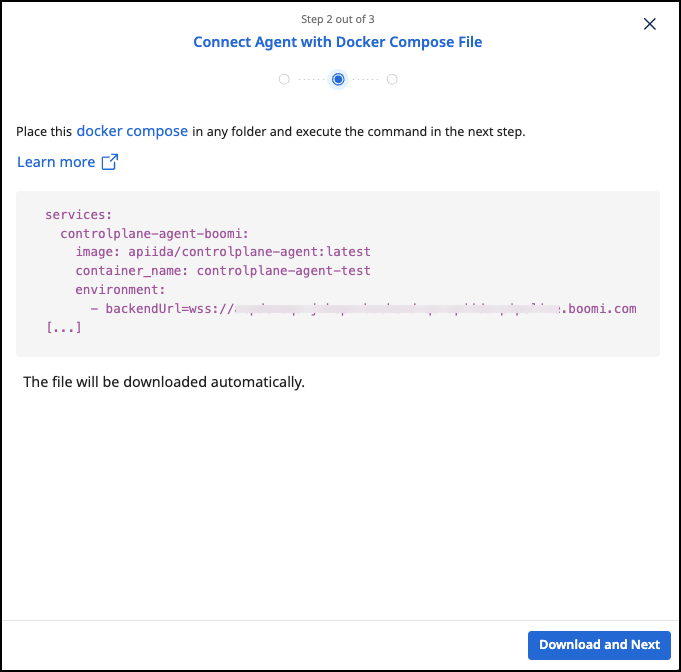
- Select Done.
-
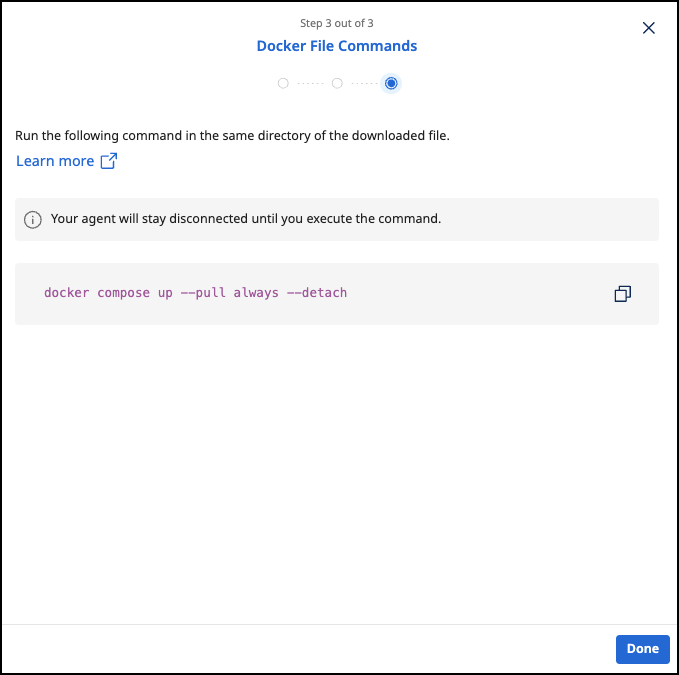
Run the following command in the same directory as the downloaded file. After running, the agent is started and connects automatically.
docker compose up --pull always --detach
Check the Agent's Status
- In API Control Plane, select Environments.
- Verify the status in the AGENT column.
- If necessary, select the tile or the entry in the table to get more detailed information about the status of the connection. This can be useful in case of an error.
It is easy to add more agents Repeat this guide or that of another gateway and simply add the agents to the existing Docker compose file.
Q&A
Where do I find my Account ID?
In the Boomi Platform, click on Settings in the top menu bar and then select Account > Account Information. This page lists your Account ID.
Where can I get an API token?
-
In the Boomi Platform, select Settings in the top menu bar then select Platform API Tokens in the left-side menu under My User Settings.
-
Select Add New Token. Choose a name that will remind you of this tokens purpose, e.g. “Control Plane agent“, then click Generate Token.
-
Copy the generated token immediately, as you cannot obtain it after you close the dialog.

Where do I find the Gateway ID?
-
Within Boomi Services in Boomi Platform, select API Gateway.
-
In the API Management menu bar, select Configure Server and then Gateways. Then click on the name of the gateway you want to connect to.
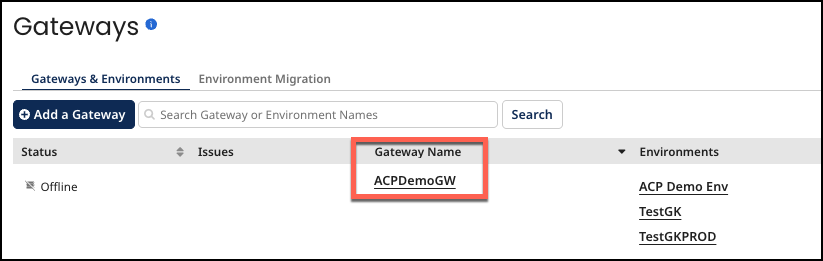
- In the next screen you will see details about your Gateway, including the Gateway ID.